
Drones have revolutionized aerial photography and videography, offering breathtaking perspectives previously accessible only to professionals with expensive equipment. One essential feature for user convenience is the ability to connect a drone camera with a phone, allowing for a seamless operation and real-time viewing. Whether you’re a novice or an experienced drone pilot, understanding how to connect your drone camera to your phone is crucial for capturing stunning imagery effortlessly.
Understanding Your Drone’s Connectivity Options
Before delving into the steps to connect your drone camera to your phone, it’s essential to understand the different connectivity options available. Many drones support multiple interfaces such as Wi-Fi, Bluetooth, or dedicated apps that facilitate the connection process. Identifying your drone’s connectivity method will significantly streamline the pairing process.
Wi-Fi Connection
Wi-Fi is a common method used by drones to connect with phones. To establish this connection, you will generally need to download the manufacturer’s app on your smartphone. Follow these steps:
- Ensure your drone is powered on and active.
- Enable Wi-Fi on your smartphone.
- Open the drone’s app and connect to the drone’s Wi-Fi network from your phone settings.
- Once connected, open the app to start streaming footage in real time.
Wi-Fi connectivity offers the advantage of longer range compared to Bluetooth, which makes it preferable for outdoor drone flights.
Bluetooth Pairing
Although less common in drones, Bluetooth offers an easy pairing method for short-distance control. To connect via Bluetooth:
- Activate Bluetooth on your smartphone.
- Switch on your drone and wait for it to become discoverable.
- Select the drone from the list of available devices on your phone.
- Confirm the connection on both devices if prompted.
While Bluetooth might not support long-range operations, it’s ideal for indoor activities.
Popular Drone Apps
Beyond inherent device connectivity features, numerous apps are designed specifically for drone users to optimize aerial control. DJI GO, for instance, is a leading app tailored for DJI drones. Other apps include Parrot FreeFlight and Litchi, all providing unique features and enhanced control options such as flight simulators and tracking systems, ensuring smooth camera connection with your phone.
Step-by-Step Guide: Pairing Your Drone Camera to Your Phone
Here’s a concise guide for connecting drone cameras to different types of phones:
- Charge your drone and the controlling device to ensure uninterrupted connectivity.
- Download the appropriate drone app.
- Follow specific instructions for each connection type (Wi-Fi/Bluetooth).
- Adjust camera settings within the app for optimal performance.
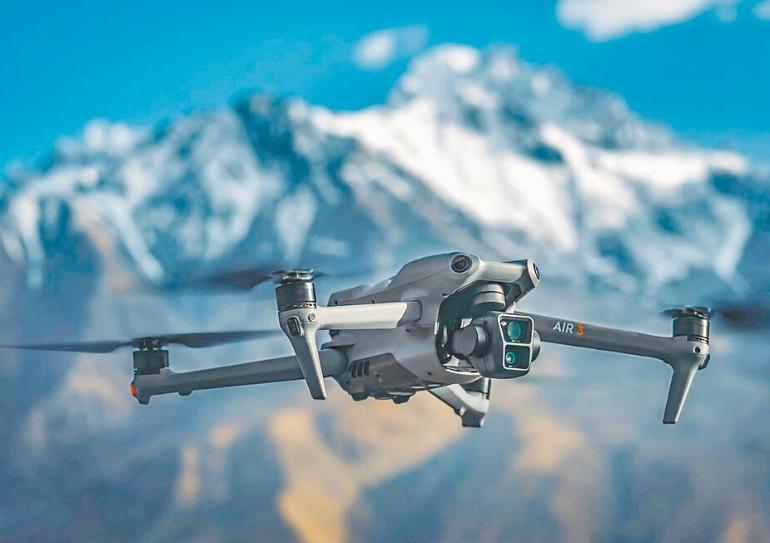
Understanding how to navigate these settings ensures enhanced image capture quality.
Potential Challenges and Solutions
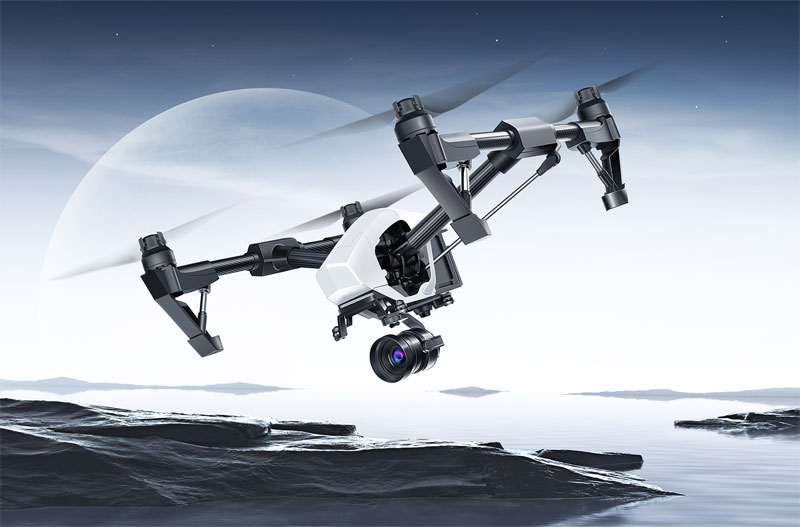
Even with carefully executed steps, you might encounter challenges such as connectivity drops or incompatible devices. Ensuring your phone and drone firmware is updated often resolves these issues. Additionally, clearing cache in the app or the device might also assist in restoring functionality.
FAQ
Q: What should I do if my drone camera doesn’t connect to my phone?
A: First, ensure both devices are fully charged and the app is updated. Try restarting both devices, and if the issue persists, consult the user manual of your drone or seek help from technical support.
Q: Can I connect my drone camera to any smartphone?
A: Most modern smartphones support drone connectivity, but it’s advisable to check compatibility with your drone’s specifications or the app requirements.
Q: Why do I experience lag during live streaming?
A: Live streaming lag may result from insufficient bandwidth or interference from other wireless devices. Ensure your drone operates within its optimal range, and attempt to reduce surrounding electronic noise.